
Windows 11 activation errors are almost always caused by one of three things: an already-used key, a hardware change, or a temporary Microsoft server issue. Here's how to tell which one you're dealing with, and how to fix it.
Windows 11 Activation: A Quick Troubleshooting Guide
Stuck on a Windows 11 activation error? Here are the fixes that solve it almost every time.
Written by Sujeet Kumar, with 12 years of experience at DigitalKeyWorld.
"This key doesn't work" or "already in use"
This usually means the key was already activated on another PC, or it was entered incorrectly. Double-check every character — the letter O and the number 0 are easy to mix up. If it's a key you bought here, contact support with your order number and we'll verify it or issue a replacement.
Activation fails after a hardware change
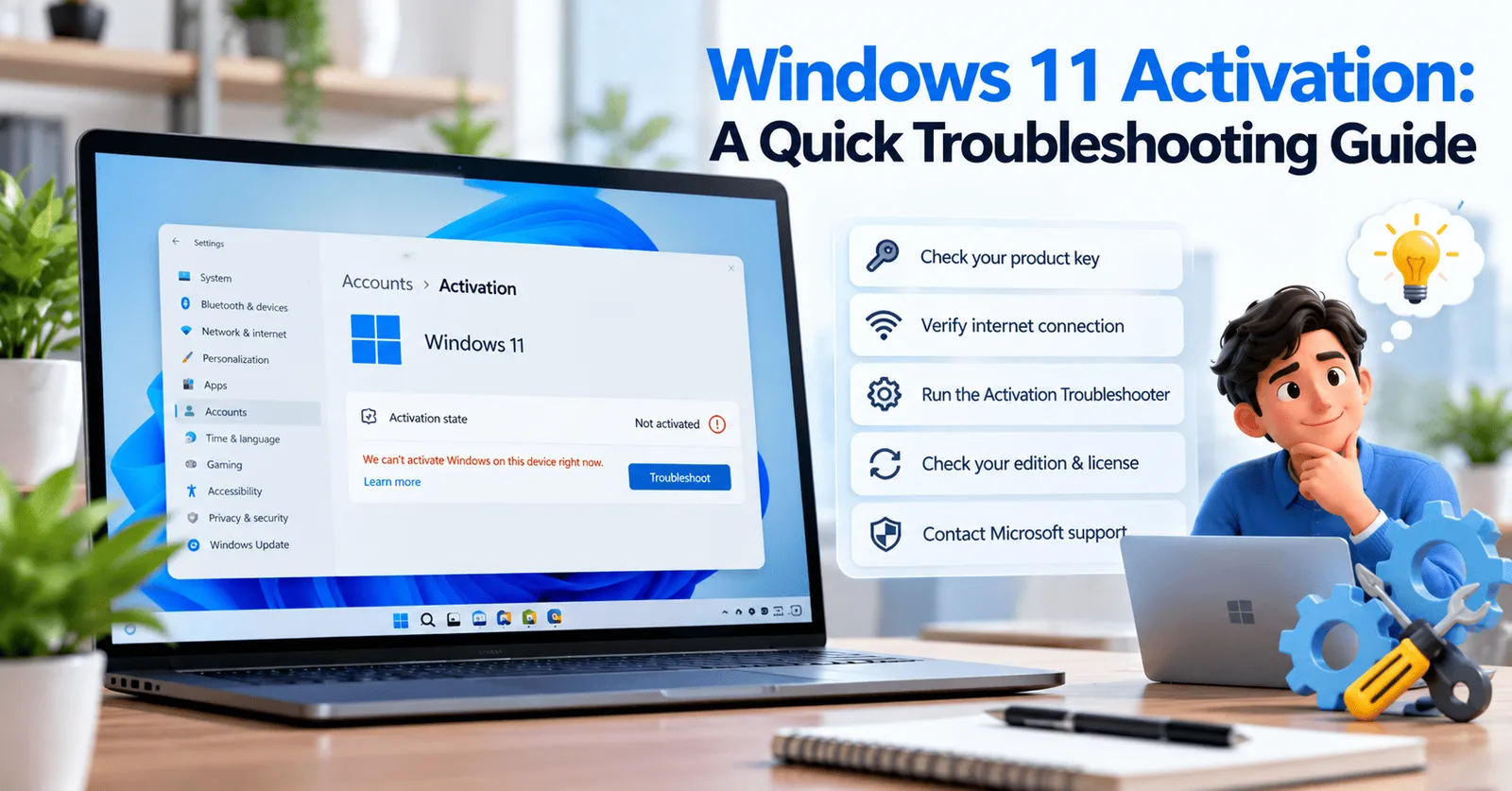
Windows ties retail keys to a hardware fingerprint. Swapping a motherboard (or several major components at once) can break that link. Run the Activation Troubleshooter in Settings → System → Activation, sign in with the Microsoft account the license is tied to, and select "I changed hardware on this device recently."
"We can't activate Windows on this device right now"
This is typically a temporary problem on Microsoft's end, not your key. Wait a few minutes and try again, or use the phone activation method from the same Activation Troubleshooter panel.
Still stuck?
Reach out through our contact page with your order number and the exact error text — we'll get it sorted.
Stay Updated
Get the latest tips, guides and exclusive offers straight to your inbox.