
Whether you can move a license to a new PC depends on the license type you bought, not on the product. This guide gives the rule for each type, then the steps to move a retail license.
How-To & Comparisons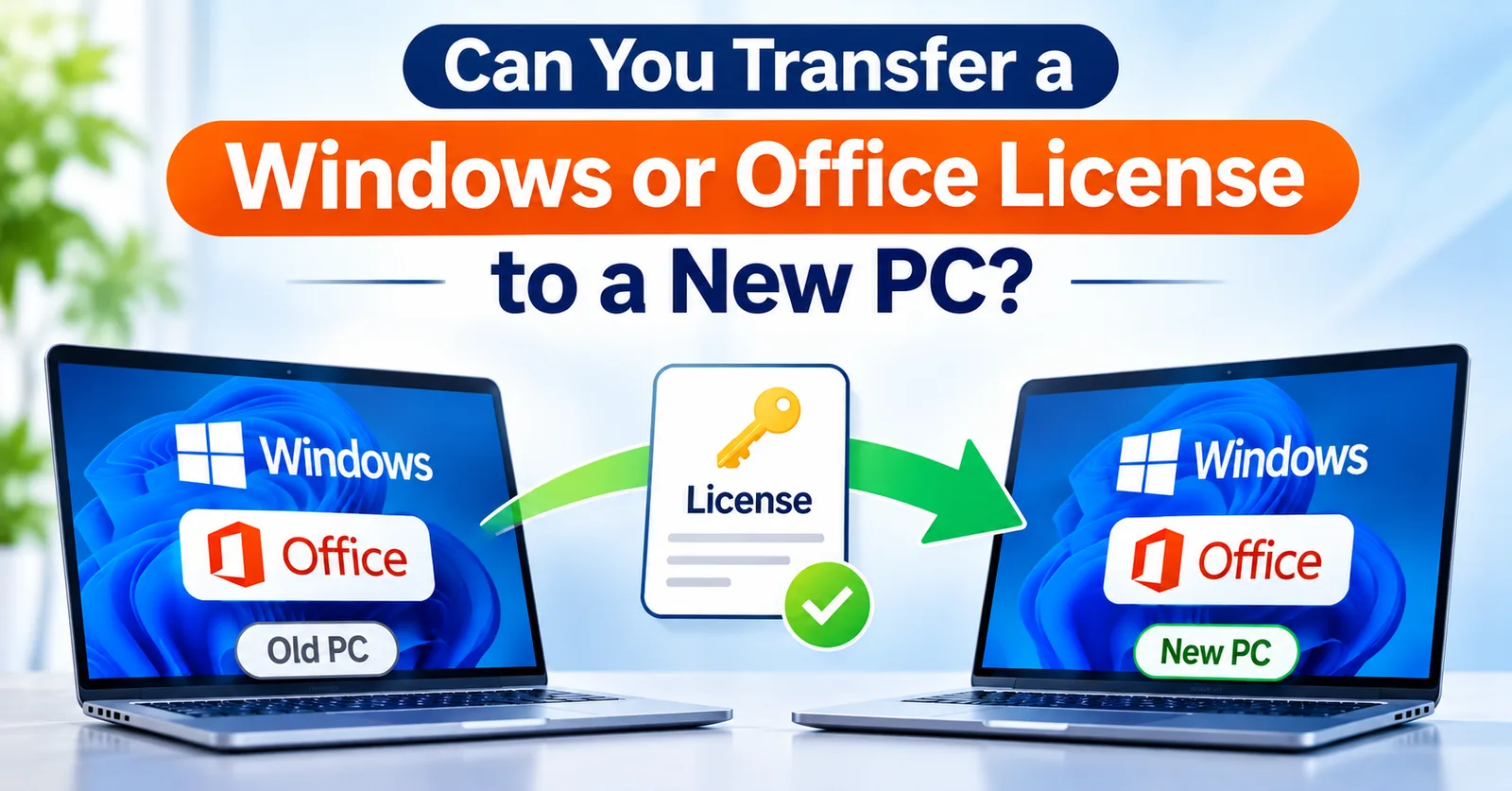
Can You Transfer a Windows or Office License to a New PC?
Which licenses can move to another computer and which cannot: retail, OEM and volume Windows and Office licenses, and the steps to move a retail key.
Written by Sujeet Kumar, with 12 years of experience at DigitalKeyWorld.
Direct Answer
A retail Windows or Office license can be moved to a new PC, as long as it is removed from the old one. An OEM license is tied to the first PC it was activated on and cannot be moved. Volume and bind licenses follow their own terms, so check the license type before you buy.
Which license types can be transferred
| License type | Can move to a new PC? |
|---|---|
| Retail (Windows or Office) | Yes, after it is removed from the old PC |
| OEM | No, it stays with the first PC |
| Volume (MAK) and bind | Depends on its terms; check before you buy |
The practical consequence is simple: if you expect to change PCs, buy a retail license. It costs more than OEM, and it keeps its value because you can reuse it. The differences between the types are explained in Retail, OEM, Volume and Bind Licenses Explained.
Why an OEM license cannot move
An OEM license is sold at a lower price on the condition that it stays with the first computer it is activated on. Microsoft's license terms, linked below, set this rule. If that PC is replaced, the license is retired with it, and the new PC needs a new license. OEM suits a PC you plan to keep for its whole life.
How to move a retail Windows license to a new PC
- On the old PC, note the edition (Settings, System, About) and keep your product key.
- Stop using the key on the old PC. A clean reinstall or wiping the drive does this.
- On the new PC, install the same edition of Windows.
- Open Settings, System, Activation, choose Change product key and enter the key.
- If activation fails, run the Activation troubleshooter and select that you changed the hardware recently.
How to move a retail Office license to a new PC
Uninstall Office from the old PC, then install Office on the new PC and sign in or enter the product key. Retail Office is licensed to one PC (or Mac) at a time. Follow the steps in the Office activation guide.
What happens after a hardware change
Replacing a hard drive or adding memory rarely affects activation. Replacing the motherboard usually does, because Windows treats it as a new PC. If Windows says it is not activated after a repair, enter your key again, or see the error fixes in Windows activation error codes and how to fix them.
Frequently asked questions
Can I transfer an OEM Windows license to a new computer?
No. An OEM license is tied to the first device it is installed on, so a new computer needs its own license.
Do I lose my Windows license if I change the motherboard?
A large hardware change, especially a new motherboard, can make Windows treat the PC as new. A retail license can be re-entered or reactivated with the troubleshooter; an OEM license may not carry over.
How many PCs can one license key activate?
One. Each retail or OEM license key covers one PC (or one user, for some Office products). Buy one license per computer.
Pro Tip
Before you move a retail license, deactivate or uninstall it on the old PC. A key that is still in use on two PCs may be rejected when you activate the second one.
Stay Updated
Get the latest tips, guides and exclusive offers straight to your inbox.