
You do not need to reinstall Windows to move from Home to Pro. Windows 11 Home upgrades to Windows 11 Pro in place by changing the product key. The whole process takes a few minutes, and it keeps your files and apps.
How-To & Comparisons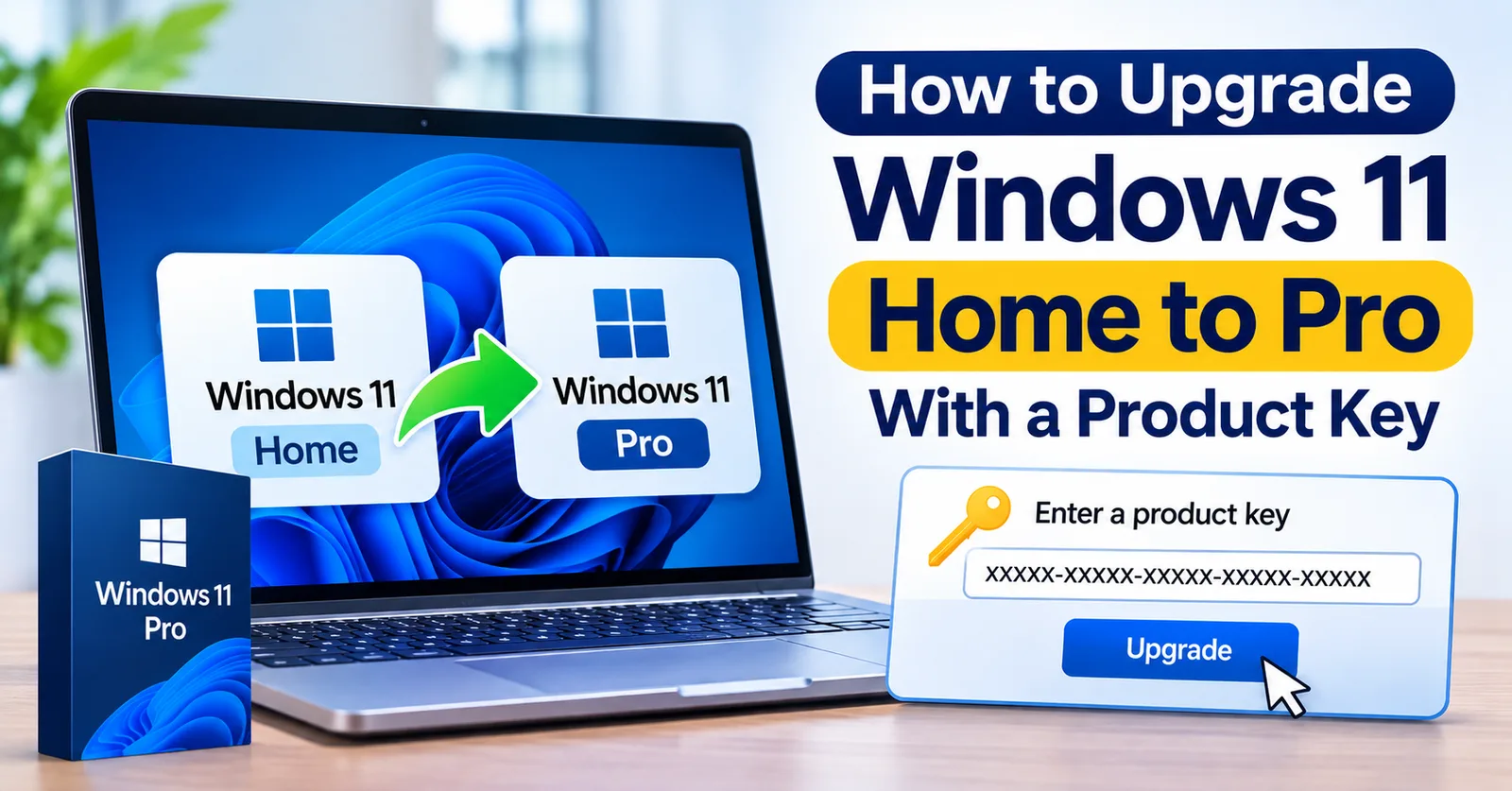
How to Upgrade Windows 11 Home to Pro With a Product Key
Step-by-step: change your product key under Settings to upgrade Windows 11 Home to Windows 11 Pro in place, without reinstalling or losing files.
Written by Sujeet Kumar, with 12 years of experience at DigitalKeyWorld.
Direct Answer
Open Settings, go to System, then Activation. Choose Change product key, enter a valid Windows 11 Pro key, and follow the prompts. Windows upgrades to Pro in place after a restart, and your files and apps stay.
Before you start
- Make sure the PC currently runs Windows 11 Home (Settings, System, About shows the edition).
- Have a valid Windows 11 Pro product key ready. Buy one on the Windows 11 Pro license key page, and it arrives by email.
- Connect the PC to the internet and to power.
The steps to upgrade Windows 11 Home to Pro
- Open Settings and select System, then Activation.
- Select Change product key (under Upgrade your edition of Windows on some versions).
- Type your Windows 11 Pro product key and select Next.
- Select Start to begin the upgrade, and let the PC restart. It may restart more than once.
- When Windows starts again, open Settings, System, Activation and check that the edition says Windows 11 Pro and the state says Active.
What you get after the upgrade
After the upgrade you can host Remote Desktop connections, join a company domain, use Group Policy, run Hyper-V virtual machines and manage BitLocker. The differences are listed in Windows 11 Home vs Pro: Which Edition Should You Buy?.
If the upgrade does not start
Check that the key is a Windows 11 Pro key, not a Home or Enterprise key, and that you typed it correctly. If you see an error code, find its meaning and fix in Windows activation error codes and how to fix them. If it still fails, contact support with your order number and the error code.
Frequently asked questions
Will I lose my files when I upgrade Windows 11 Home to Pro?
No. The upgrade happens in place, so your files, apps and settings stay. A backup is still sensible.
How long does the upgrade take?
Usually a few minutes plus one or two restarts. The PC must stay powered on and connected to the internet.
Can I use an OEM Windows 11 Pro key to upgrade Home?
Yes, if the key is a valid Pro key. Remember that an OEM key stays with this PC afterwards.
Pro Tip
Back up important files first, even though the upgrade does not remove them. A backup costs nothing and protects you from an unexpected power cut during the restart.
Sources & References
Stay Updated
Get the latest tips, guides and exclusive offers straight to your inbox.