
Windows 10 reached end of support on 14 October 2025. Microsoft no longer releases free security updates for Windows 10 Home and Pro. The PC still runs, but each new security flaw stays unfixed, so a PC left on Windows 10 becomes riskier over time. This guide explains your options.
How-To & Comparisons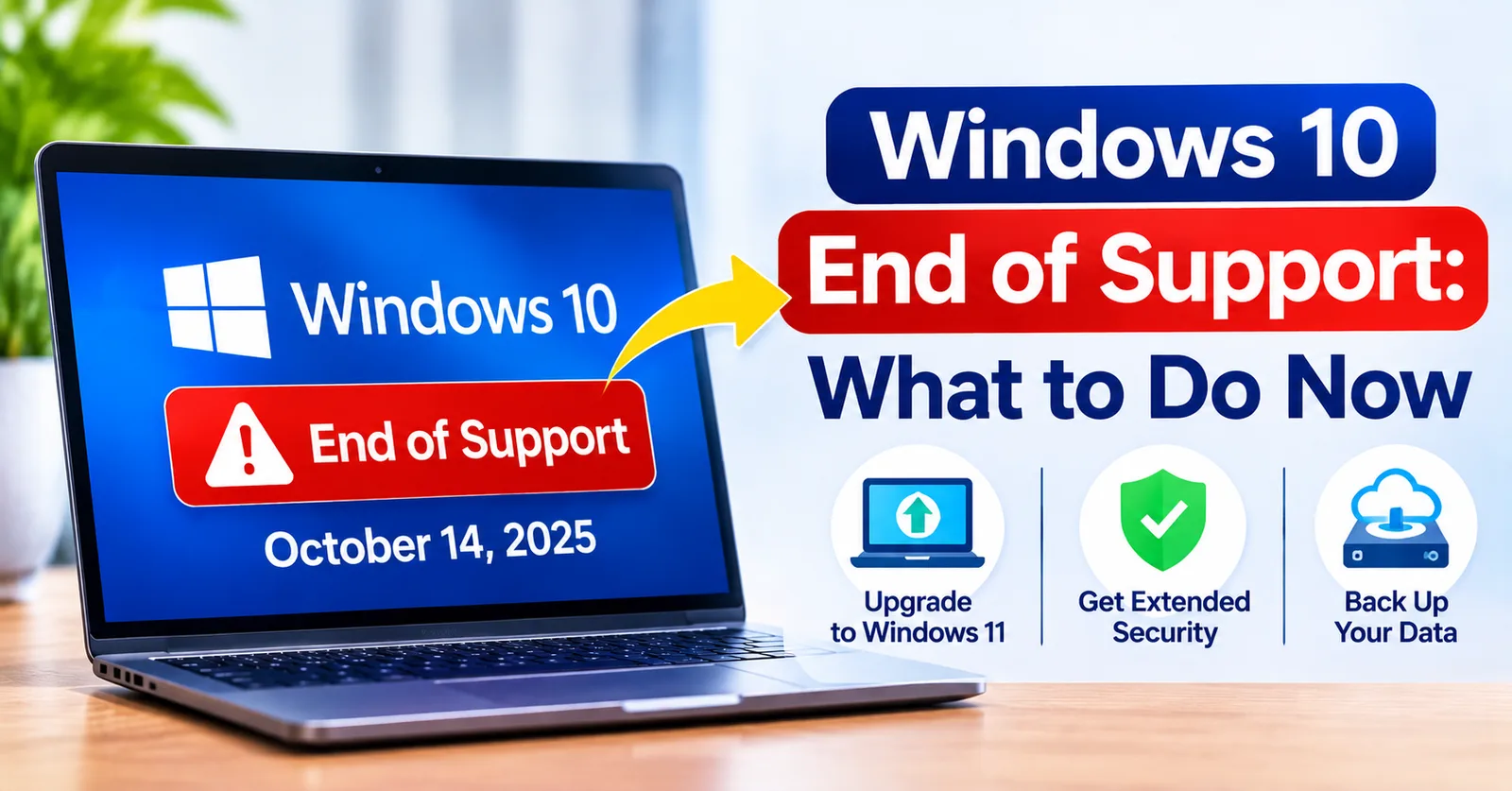
Windows 10 End of Support: What to Do Now
Windows 10 reached end of support on 14 October 2025. What that means for security, and your options: upgrade to Windows 11, buy a new PC or use extended updates.
Written by Sujeet Kumar, with 12 years of experience at DigitalKeyWorld.
Direct Answer
Windows 10 reached end of support on 14 October 2025, so it no longer receives free security updates. If your PC meets the Windows 11 requirements, upgrade to Windows 11. If it does not, replace the PC or use Microsoft's limited paid extended updates while you plan a replacement.
What end of support means for a Windows 10 PC
End of support means no more free security updates, no more bug fixes and no technical help from Microsoft for Windows 10. Your files and programs keep working. The risk is security: new attacks are not patched, and some software stops supporting the system. The official dates are on the Microsoft lifecycle page linked below.
Option 1: upgrade to Windows 11
The best option is to upgrade to Windows 11 if the PC qualifies. Windows 11 needs a 64-bit processor on Microsoft's list, 4 GB of memory, 64 GB of storage, UEFI with Secure Boot and TPM 2.0. The full list is in Windows system requirements, and the steps are in How to upgrade to Windows 11. If you need a license for a clean install, browse Windows 11 license keys.
Option 2: replace the PC
If your PC fails the Windows 11 requirements, replacing it is the cleanest fix. A new PC comes with Windows 11 and years of updates. Unsupported hardware can sometimes be forced to install Windows 11, but Microsoft does not support it, and updates may fail.
Option 3: use extended security updates for a limited time
Microsoft offered a limited, paid Extended Security Updates programme for Windows 10. It only delays the problem, so treat it as a bridge while you plan the upgrade or replacement, not as a long-term plan.
What to do this week
- Run the PC Health Check app to see whether the PC can run Windows 11.
- Back up your files.
- If it passes, upgrade through Windows Update, or install Windows 11 with a license key.
- If it fails, plan a replacement, and keep the PC off risky sites until then.
After installing, confirm the PC is licensed by following How to check if Windows is activated.
Frequently asked questions
Will my Windows 10 PC stop working?
No. It keeps running. What stops is security updates, and a PC without them becomes less safe the longer it is online.
Is the Windows 11 upgrade free for Windows 10 PCs?
If your PC meets the requirements and has a genuine Windows 10 license, Microsoft offers the upgrade through Windows Update at no cost. A clean install needs its own license.
What if my PC does not meet the Windows 11 requirements?
The main blockers are TPM 2.0, Secure Boot and an eligible processor. Check the requirements guide, and consider a newer PC if it fails them.
Pro Tip
Run the PC Health Check app from Microsoft first. It tells you in one minute whether this PC can run Windows 11 and, if not, which requirement it fails.
Stay Updated
Get the latest tips, guides and exclusive offers straight to your inbox.