
A clean install of Windows 11 starts the PC fresh: it removes old programs and settings, which fixes many slow or broken systems. You need a USB drive, an internet connection and about an hour. This guide gives the steps in order.
How-To & Comparisons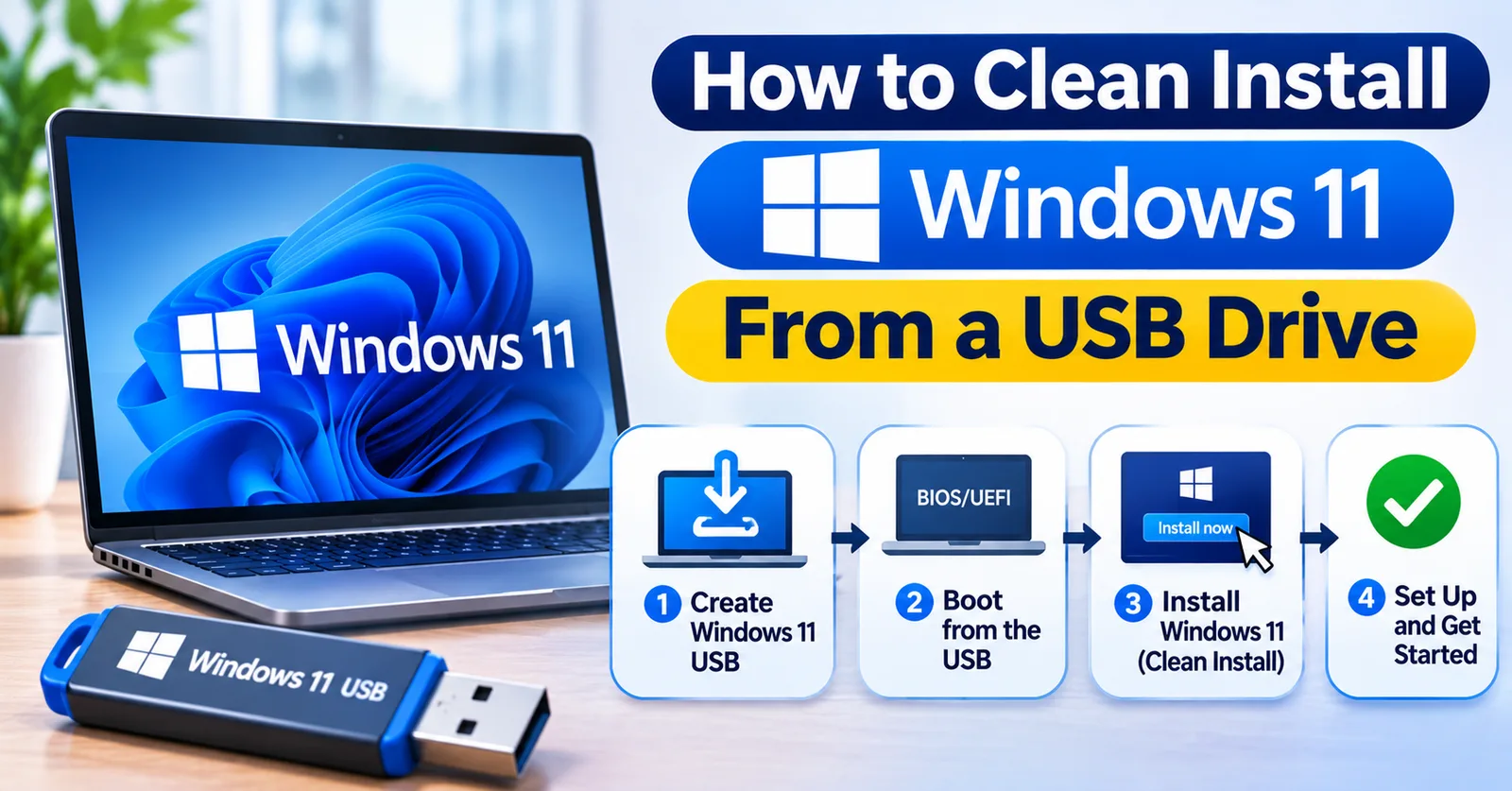
How to Clean Install Windows 11 From a USB Drive
Create a Windows 11 USB installer with Microsoft's tool, boot from it, run a clean install and activate Windows afterwards with your key.
Written by Sujeet Kumar, with 12 years of experience at DigitalKeyWorld.
Direct Answer
Download Microsoft's Windows 11 Installation Media tool, use it to create a bootable USB drive (8 GB or larger), restart the PC and boot from the USB, then choose Custom install and select the drive. After setup, enter your product key under Settings, System, Activation.
What you need before you start
- A USB drive of 8 GB or more that you can erase.
- A PC that meets the Windows 11 requirements: see Windows system requirements.
- Your Windows 11 product key. Get one from Windows 11 license keys if you do not have one.
- A backup of your files, because the install erases the drive you choose.
Step 1: create the Windows 11 USB installer
On a working PC, download the Windows 11 Installation Media tool from Microsoft's download page, linked in the sources below. Run it, accept the terms, choose USB flash drive, select your drive and let it download and write Windows 11. This takes 10 to 30 minutes depending on your connection.
Step 2: boot the PC from the USB drive
Plug the USB drive into the PC you are installing on and restart it. Press the boot menu key as it starts (often F12, F10, F9 or Esc; it varies by maker) and choose the USB drive. If the PC does not show the drive, open the firmware settings and check that the boot order allows USB.
Step 3: run the Windows 11 setup
- Choose your language, time and keyboard, then select Install now.
- Enter your product key, or select I do not have a product key to activate later.
- Select the edition that matches your key (Home or Pro).
- Choose Custom: Install Windows only.
- Select the drive or partition to install on, delete old partitions if you want a fully clean start, and select Next.
The PC restarts several times. Follow the setup screens to choose your region and sign in.
Step 4: activate Windows
After setup, open Settings, System, Activation. If Windows is not active, select Change product key and enter your key. To confirm everything worked, follow How to check if Windows is activated. If an error code appears, see Windows activation error codes and how to fix them.
Frequently asked questions
Do I need a product key to install Windows 11?
You can choose I do not have a product key during setup and activate afterwards. An unactivated copy runs with limits until you enter a valid key.
How big must the USB drive be?
At least 8 GB. The drive is erased when the installer is created, so use an empty one.
Will a clean install delete my files?
Yes, it erases the partition you choose to install on. Back up your files first.
Pro Tip
Back up everything first. A clean install erases the drive you choose, so copy your documents, photos and browser data to another drive or cloud storage before you begin.
Stay Updated
Get the latest tips, guides and exclusive offers straight to your inbox.